

Introduction
In the modern data center, GPUs are no longer just for high-end rendering; they are the engines driving AI, Large Language Models (LLMs), and VDI (Virtual Desktop Infrastructure). However, a physical GPU is an expensive, high-capacity resource that is often underutilized if dedicated to a single Virtual Machine (VM).

In VMware vSphere 8.x (ESXi/vCenter), GPU Partitioning (specifically through NVIDIA vGPU technology) allows you to “carve” a physical GPU into multiple virtual instances, enabling high-density, cost-effective scaling.

1. The Methods of GPU Sharing
To understand partitioning, you must first distinguish it from other VMware GPU methods:
| Method | Best For | Sharing? | Performance |
| DirectPath I/O | Heavy AI Training | No (1:1 mapping) | 100% (Bare Metal) |
| vGPU (Time-Slicing) | VDI & Mixed Workloads | Yes (Software Slices) | ~95% |
| MIG (Multi-Instance GPU) | Multi-tenant AI / Inference | Yes (Hardware Isolation) | 100% per slice |
2. Core Technology: NVIDIA vGPU
Most “GPU Splitting” on VMware utilizes the NVIDIA vGPU software. It operates by installing a manager (VIB) directly into the ESXi hypervisor, which then acts as a traffic cop, distributing GPU cycles to multiple VMs.
How it Splits: vGPU Profiles
When you assign a GPU to a VM in vCenter, you choose a Profile (e.g., grid_a100-4c).
- The Number (4): Represents the amount of Frame Buffer (VRAM) in GB allocated to that VM.
- The Letter (C, Q, or B): Represents the workload type (C for Compute/AI, Q for Quadro/Design, B for Business/VDI).
3. Advanced Splitting: MIG (Multi-Instance GPU)
For newer architectures (Ampere and later, like the A100 or H100), NVIDIA introduced MIG. Unlike standard vGPU which uses “time-slicing” (sharing the same cores over tiny fractions of a second), MIG physically partitions the GPU hardware into isolated “instances.”
- Isolation: If one VM crashes its GPU driver, it doesn’t affect other VMs on the same physical card.
- Predictability: Each partition has its own dedicated high-speed memory and compute cores.
4. Implementation Workflow
Configuring this in a VMware environment follows a specific “Host-to-VM” path:
Step A: Host Preparation
- BIOS Settings: Ensure SR-IOV and Above 4G Decoding are enabled on your physical server.
- Install the VIB: Download the NVIDIA vGPU Manager for ESXi. Upload the file to host using WinsSCP. SSH to EXSi host and use the CLI to install:
esxcli software vib install -v /tmp/NVD-vGPU_ESXi_8.0.vib - Host Graphics Settings: In vCenter, navigate to Host > Configure > Graphics. Set the “Default graphics type” to Shared Direct.
Step B: VM Configuration
- Add PCI Device: Edit VM settings and add a “New PCI Device.”
- Select vGPU Profile: Select the NVIDIA GRID vGPU and choose your desired slice (e.g., 2GB or 4GB).
- Reserve Memory: vSphere requires you to “Reserve all guest memory” for any VM using a vGPU.
5. New in 2026: vSphere 8 Update 3+ Enhancements
As of the latest updates in 2025 and early 2026, VMware has significantly smoothed the “splitting” experience:
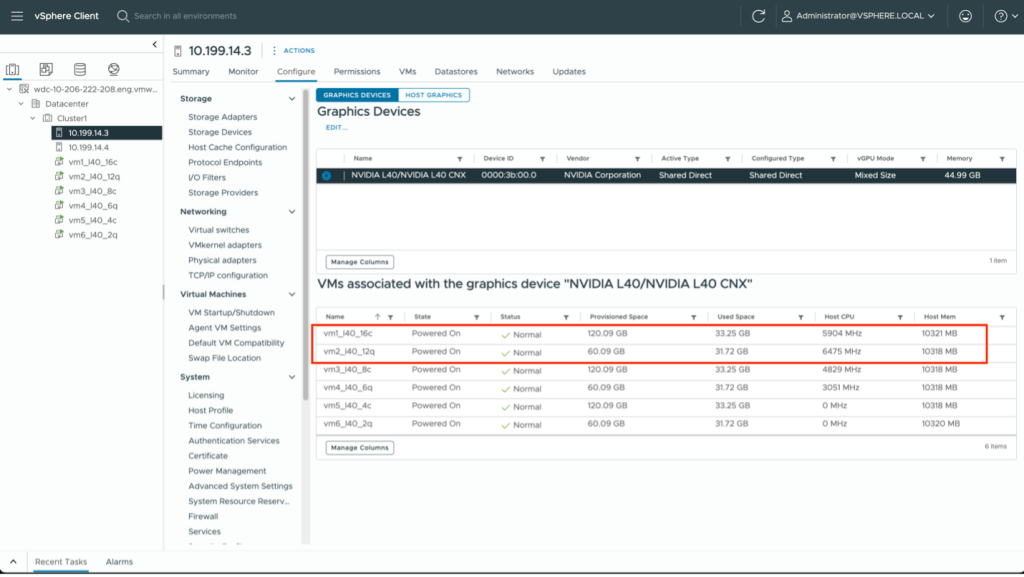
- Heterogeneous Profiles: You can now run different sizes of vGPU profiles (e.g., a 2GB slice and an 8GB slice) on the same physical GPU, provided they are the same series.
- GPU Statistics in vCenter: You no longer need to jump into the ESXi shell (
nvidia-smi) to see utilization. vCenter now provides native GPU performance charts. - Live Migration (vMotion): vGPU-enabled VMs can now be live-migrated between hosts without dropping the session, a massive win for maintenance windows.
Summary
GPU splitting via VMware ESXi transforms a static hardware asset into a flexible cloud resource. By moving from Pass-through (one user) to vGPU/MIG (many users), organizations can reduce hardware costs by up to 60-80% while maintaining the performance required for modern AI workloads.

