 ALKNETWORK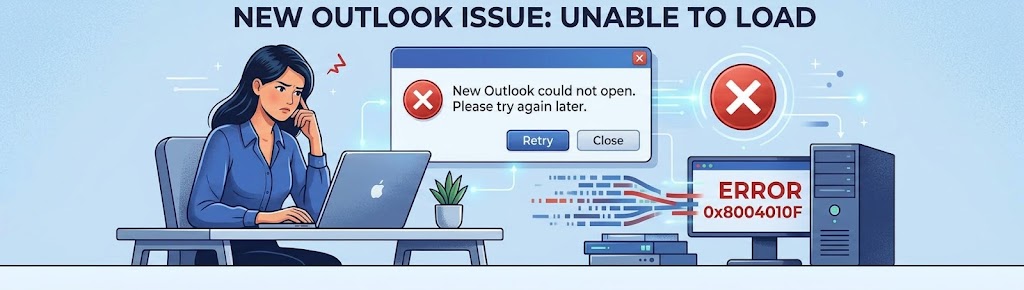
When New Outlook gets stuck on the initial loading screen (often displaying a spinning wheel or "Loading..."), it usually indicates that a corrupted cache file, background process conflict, or Microsoft Webview2 component failure is preventing the app interface from rendering properly.
Before attempting the steps below, ensure Outlook isn't running silently in the background. Right-click the Windows Taskbar, open Task Manager, locate Outlook (New) or Microsoft Outlook, and click End Task.
Press Windows Key + R to open the Run dialog. Type olk.exe --clearLocalState and press Enter. If the app does not launch, open File Explorer, navigate to %localappdata%\Packages\Microsoft.OutlookForWindows_8wekyb3d8bbwe\LocalState, and delete all files and folders contained inside.
Verification: Relaunch New Outlook. It should bypass the stuck loading screen and prompt you to sign in fresh.
New Outlook relies entirely on Microsoft Edge WebView2 to display its interface. Open Windows Settings (Win + I) > Apps > Installed apps. Search for Microsoft Edge WebView2 Runtime, click the three dots (...) next to it, select Modify, and click Repair.
Verification: Open New Outlook to see if the interface loads properly without freezing.
Open Windows Settings (Win + I) > Apps > Installed apps. Locate Outlook (new), click the three dots (...), and select Advanced options. Scroll down and click Repair. If the loading screen remains stuck upon reopening, return to this page and click Reset.
Verification: Launch the application to verify that the initial configuration window appears.
Press Windows Key + R, type outlook.exe /cleanviews or olk.exe directly, and press Enter. Alternatively, try switching back to Classic Outlook (if installed) or accessing Outlook on the Web to ensure your email account itself is functioning.
Verification: Confirm whether the application successfully connects and loads your mailbox content.